> ## Documentation Index
> Fetch the complete documentation index at: https://citdhq.com/docs/llms.txt
> Use this file to discover all available pages before exploring further.
# Quickstart
> Add your brand and see your first AI visibility results in minutes.
This guide takes you from zero to your first tracked results. It should take about five minutes to complete the setup, then a short wait while Citd runs its first tracking cycle.
This page covers the fast path to first results. For a detailed walkthrough of every onboarding option, see [Set up your project](/setup/onboarding).
Go to [citdhq.com](https://citdhq.com) and start the onboarding flow.
Enter your **store URL** and **brand name**. Citd reads your storefront to discover your product categories and generate a starting set of topics and prompts.
You do not need to connect your Shopify store to get started. Your store URL alone is enough for the initial setup.
Citd suggests **topics** — the product categories your brand competes in. Topics are how Citd organizes your tracking coverage.
A hiking gear store might see topics like:
* Trail running shoes
* Hiking boots
* Waterproof jackets
* Trekking poles
Review the list. Remove anything that does not fit your catalog. Add any categories that are missing. Topics shape which prompts Citd will track and how reporting is grouped.
Based on your topics, Citd generates **tracking prompts**: the actual buyer queries it will run on AI assistants on your behalf.
These are real queries like:
* *"best trail running shoes for technical terrain"*
* *"hiking boots for wide feet comparison"*
* *"waterproof jacket for Pacific Crest Trail"*
Keep the prompts that match real buyer intent in your space, and remove any that feel off-target.
Start with up to 5 prompts on Free, then expand on Starter or Growth. You can always add more prompts later from the [Prompt Workspace](/features/prompts).
You can link Shopify or Google Search Console to enrich your data. This is optional — Citd works without them, but the connections add richer product and traffic context.
Skip this step if you want to get to results quickly. You can connect integrations any time from [Integrations](/setup/integrations).
Once you confirm your setup, Citd starts the first tracking run automatically. It submits each active prompt to AI assistants and records which brands appear, in what position, and which sources are cited.
The first run takes a few minutes. When it completes, your workspace begins populating.
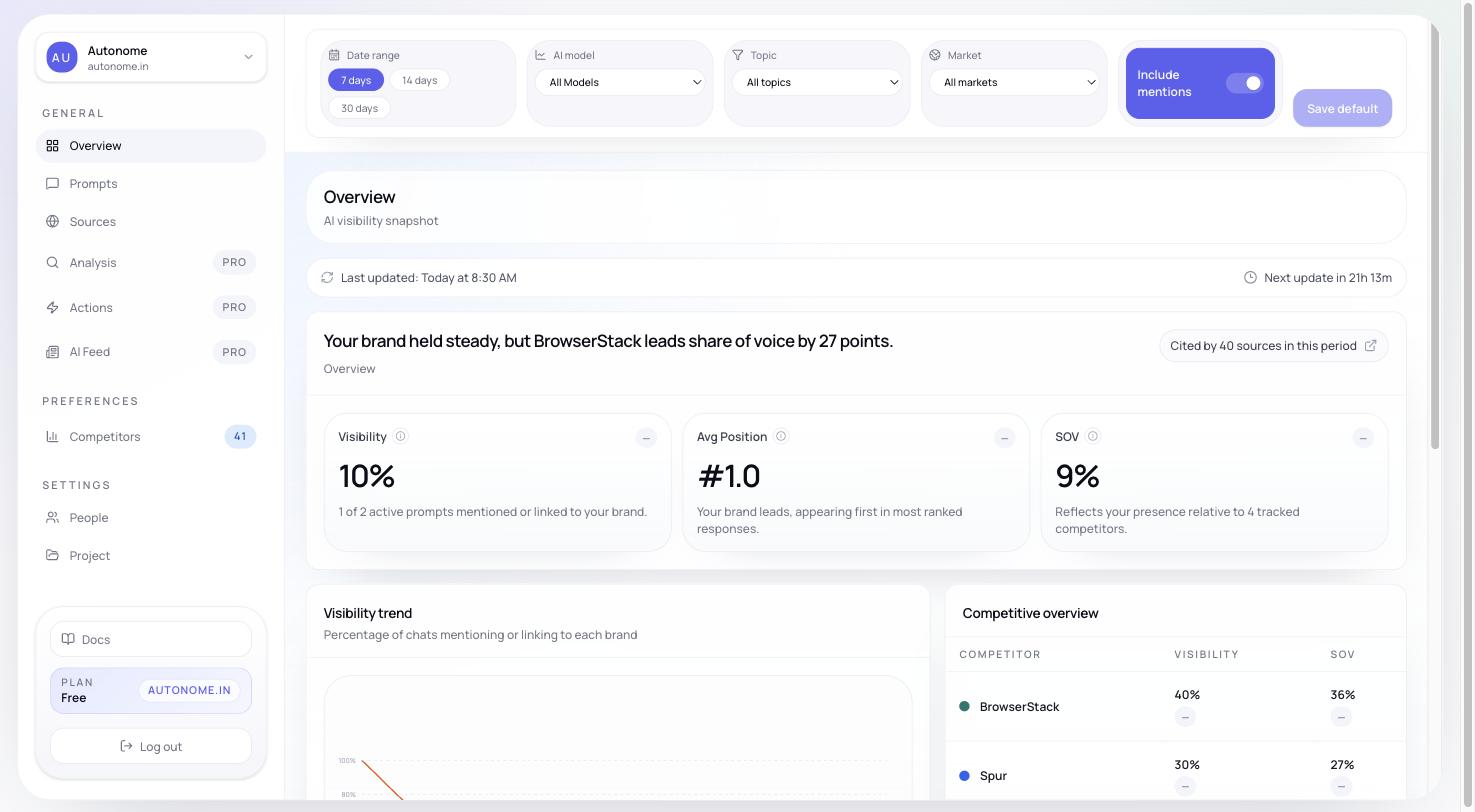
Your [Overview](/features/overview) is the main place to work from day to day. After the first run, you will see:
* **Visibility, Share of Voice, Avg Rank, and Sentiment** — your core performance metrics
* **Competitor performance** — how you compare to the brands appearing in the same prompts
* **Source intelligence** — which domains were cited when AI assistants made recommendations
* **Recent responses** — the actual AI responses so you can read exactly what was said
 ## What's next
Learn how to read the main workspace after your first run.
Review prompts, add topics, and keep the tracked set clean over time.
Understand why competitors outrank you when you need root-cause detail.
## What's next
Learn how to read the main workspace after your first run.
Review prompts, add topics, and keep the tracked set clean over time.
Understand why competitors outrank you when you need root-cause detail.