> ## Documentation Index
> Fetch the complete documentation index at: https://citdhq.com/docs/llms.txt
> Use this file to discover all available pages before exploring further.
# Prompt Workspace
> Manage the query set that defines your AI visibility measurements — review active, suggested, and inactive prompts, add topics, and keep the tracked set clean over time.
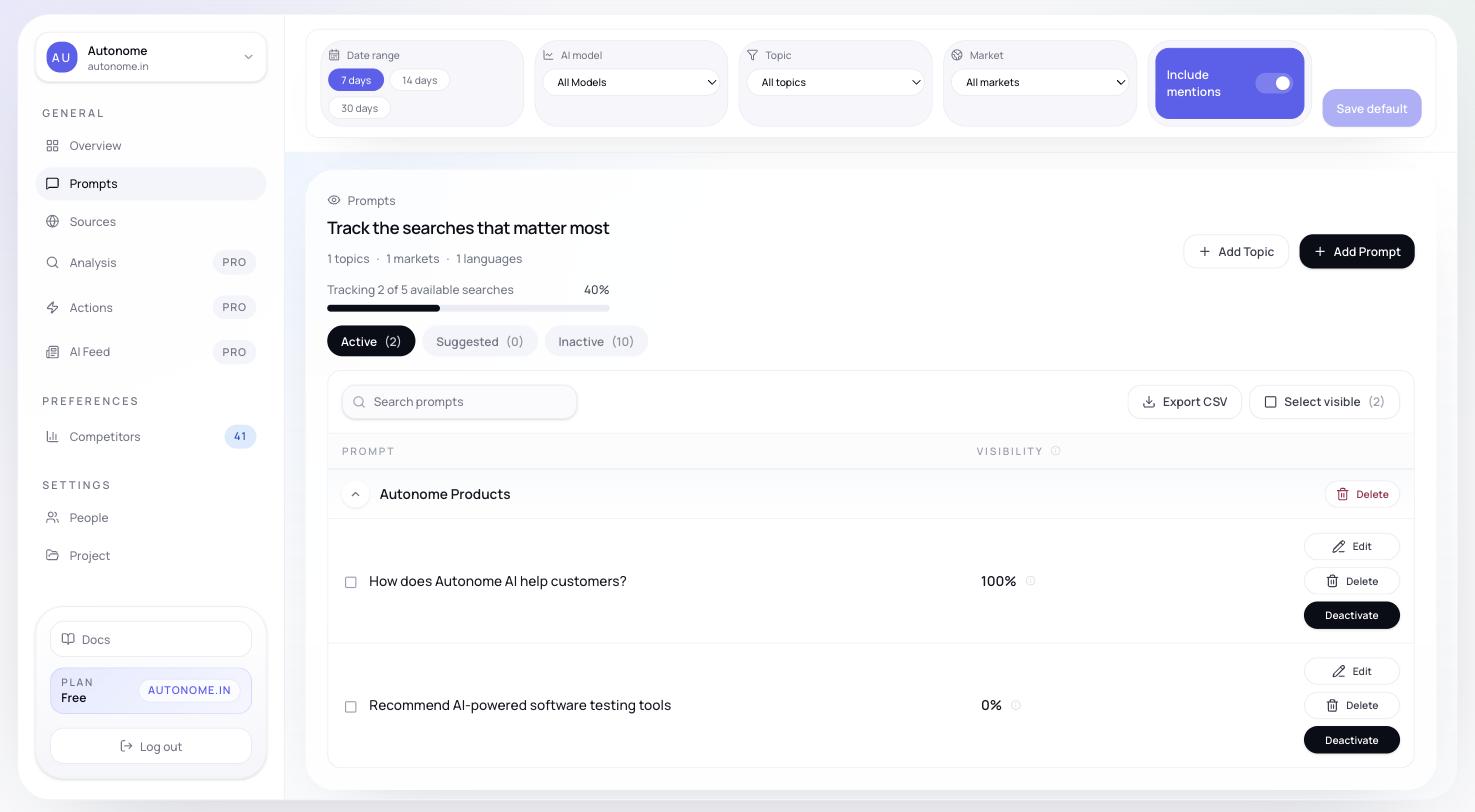
The **Prompt Workspace** is where you maintain the query set that drives every metric Citd records. If the prompts are weak or misaligned with real buyer intent, the metrics will be too.
 ## Why it matters
Only **active** prompts get tracked and counted in your metrics. The Workspace is where you decide which buyer questions Citd monitors, how they are organized, and when to retire or activate prompts as your catalog or strategy changes.
***
## States and tabs
Prompts are organized across three tabs:
| State | What it means |
| ------------- | ----------------------------------------------------------------------------------------------------- |
| **Active** | Currently tracked; counted in [Visibility](/concepts/visibility), Share of Voice, Rank, and Sentiment |
| **Suggested** | Proposed by Citd or carried over from onboarding; waiting for your review |
| **Inactive** | Stored in the workspace but not currently tracked |
Only **Active** prompts affect your metrics. Review the Suggested tab regularly — new prompt suggestions appear there as Citd discovers new patterns in tracked responses.
***
## What you can do here
From the Prompt Workspace you can:
* review and switch between Active, Suggested, and Inactive prompts
* add a new [topic](/concepts/topics) to organize a new product area
* add a custom [prompt](/concepts/prompts) to any topic
* edit prompt text inline
* bulk change prompt status (activate, deactivate, or delete a batch at once)
* export visible prompts to CSV for review outside Citd
***
## Topics organize the workspace
Prompts are grouped by [topic](/concepts/topics) — the product areas, use cases, or competitive themes you defined during onboarding. The left sidebar of the Workspace lists your topics; clicking one filters the prompt list to that category.
Organizing by topic makes it easier to answer:
* Do we have enough prompts for this category?
* Are we over-weighting one topic?
* Which topic has stale or low-quality prompts?
You can add new topics directly from this page without going back to onboarding.
***
## Bulk operations
The Workspace is designed for ongoing maintenance, not just onboarding.
Common bulk actions include:
* activating a batch of suggested prompts you are ready to track
* deactivating a noisy prompt set that is diluting your metrics
* restoring previously inactive prompts after a product relaunch
* deleting prompts you know you will never use
CSV export is useful when a content, SEO, or merchandising team wants to review the full prompt set outside the product.
***
## How to build a good prompt set
* Cover all your important [topics](/concepts/topics), not just your bestselling product family.
* Mix high-intent purchase prompts with comparison and research prompts. See [Shopping modes](/concepts/shopping-modes) for how different prompt types resolve in AI assistants.
* Keep prompts distinct enough to represent different buyer questions. Duplicates add noise without adding insight.
* Deactivate prompts that are redundant, outdated, or off-category.
A smaller, well-curated prompt set is more useful than a large set full of duplicates. Aim for quality coverage rather than maximum quantity.
***
## Free plan prompt limit
On the Free plan, up to **5 prompts** can be active at one time. You set your initial 5 during onboarding. To track more, upgrade your plan — see [Plans](/plans).
Prompts beyond the active limit stay in the Suggested or Inactive tabs and can be activated when you upgrade.
***
## Next steps
Understand what a prompt is, how Citd generates them, and how to write good ones.
Learn how topics organize your workspace and drive prompt generation.
See how active prompts flow into your main visibility metrics.
Definitions for Visibility, Share of Voice, Rank, and other key terms.
## Why it matters
Only **active** prompts get tracked and counted in your metrics. The Workspace is where you decide which buyer questions Citd monitors, how they are organized, and when to retire or activate prompts as your catalog or strategy changes.
***
## States and tabs
Prompts are organized across three tabs:
| State | What it means |
| ------------- | ----------------------------------------------------------------------------------------------------- |
| **Active** | Currently tracked; counted in [Visibility](/concepts/visibility), Share of Voice, Rank, and Sentiment |
| **Suggested** | Proposed by Citd or carried over from onboarding; waiting for your review |
| **Inactive** | Stored in the workspace but not currently tracked |
Only **Active** prompts affect your metrics. Review the Suggested tab regularly — new prompt suggestions appear there as Citd discovers new patterns in tracked responses.
***
## What you can do here
From the Prompt Workspace you can:
* review and switch between Active, Suggested, and Inactive prompts
* add a new [topic](/concepts/topics) to organize a new product area
* add a custom [prompt](/concepts/prompts) to any topic
* edit prompt text inline
* bulk change prompt status (activate, deactivate, or delete a batch at once)
* export visible prompts to CSV for review outside Citd
***
## Topics organize the workspace
Prompts are grouped by [topic](/concepts/topics) — the product areas, use cases, or competitive themes you defined during onboarding. The left sidebar of the Workspace lists your topics; clicking one filters the prompt list to that category.
Organizing by topic makes it easier to answer:
* Do we have enough prompts for this category?
* Are we over-weighting one topic?
* Which topic has stale or low-quality prompts?
You can add new topics directly from this page without going back to onboarding.
***
## Bulk operations
The Workspace is designed for ongoing maintenance, not just onboarding.
Common bulk actions include:
* activating a batch of suggested prompts you are ready to track
* deactivating a noisy prompt set that is diluting your metrics
* restoring previously inactive prompts after a product relaunch
* deleting prompts you know you will never use
CSV export is useful when a content, SEO, or merchandising team wants to review the full prompt set outside the product.
***
## How to build a good prompt set
* Cover all your important [topics](/concepts/topics), not just your bestselling product family.
* Mix high-intent purchase prompts with comparison and research prompts. See [Shopping modes](/concepts/shopping-modes) for how different prompt types resolve in AI assistants.
* Keep prompts distinct enough to represent different buyer questions. Duplicates add noise without adding insight.
* Deactivate prompts that are redundant, outdated, or off-category.
A smaller, well-curated prompt set is more useful than a large set full of duplicates. Aim for quality coverage rather than maximum quantity.
***
## Free plan prompt limit
On the Free plan, up to **5 prompts** can be active at one time. You set your initial 5 during onboarding. To track more, upgrade your plan — see [Plans](/plans).
Prompts beyond the active limit stay in the Suggested or Inactive tabs and can be activated when you upgrade.
***
## Next steps
Understand what a prompt is, how Citd generates them, and how to write good ones.
Learn how topics organize your workspace and drive prompt generation.
See how active prompts flow into your main visibility metrics.
Definitions for Visibility, Share of Voice, Rank, and other key terms.