> ## Documentation Index
> Fetch the complete documentation index at: https://citdhq.com/docs/llms.txt
> Use this file to discover all available pages before exploring further.
# Overview
> Your main daily workspace — filters, metric cards, diagnostics, and recent responses all in one place.
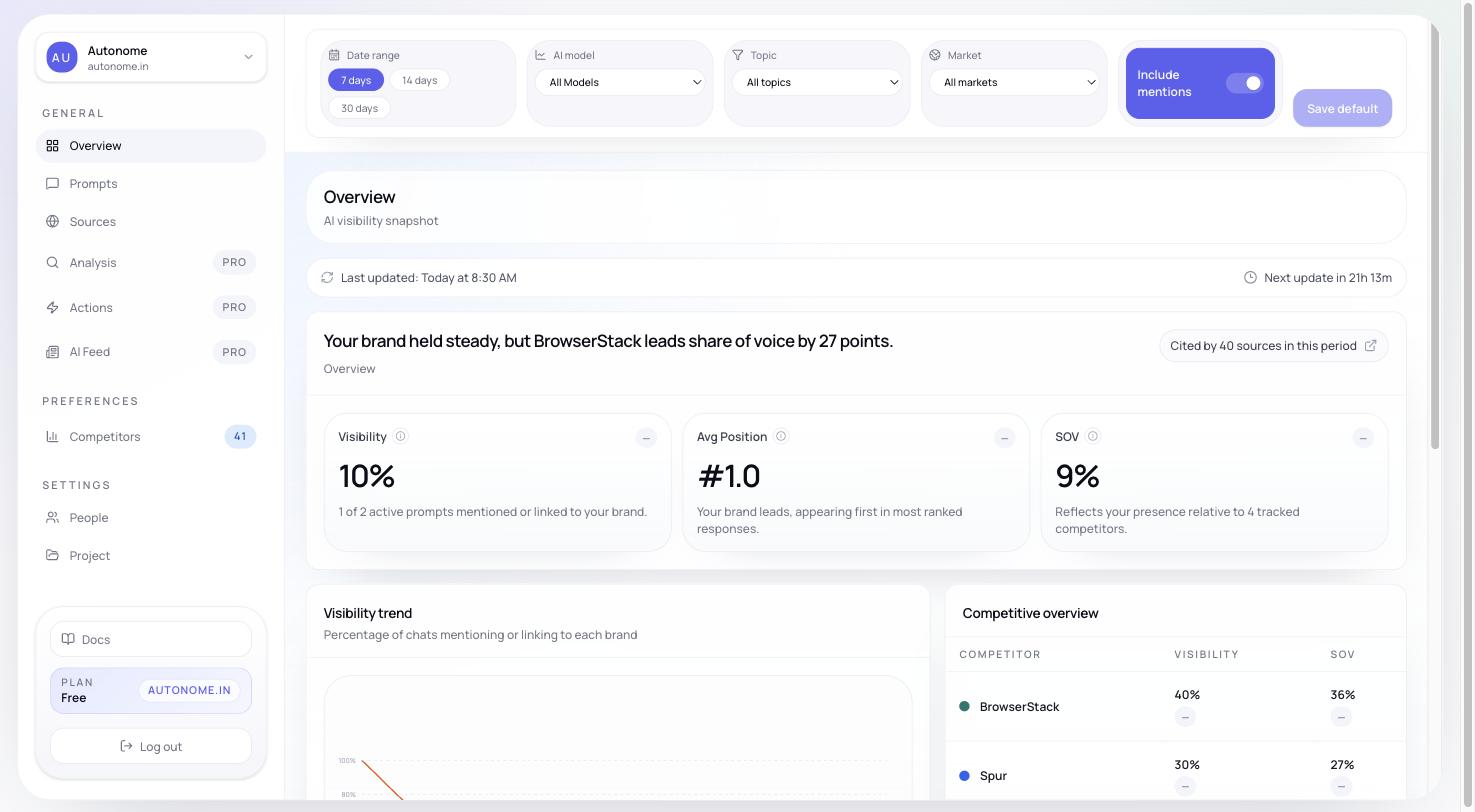
The **Overview** page is where you start every session in Citd. It brings together freshness status, performance metrics, competitive context, source signals, and recent AI responses so you can spot what changed and decide where to dig in next.
 ## Why it matters
Overview is designed to answer one question fast: "Did something change, and do I know why?" It saves you from opening five separate pages each morning by showing the most important signals together.
## Start with the filters
The filter bar at the top controls every section on the page at once.
| Filter | What it changes |
| -------------- | ----------------------------------------------------------- |
| **Date range** | The window used for trends and metric summaries |
| **Model** | The tracked model slice, when multiple models are available |
| **Topic** | The category-level slice you want to inspect |
| **Market** | The country and language slice |
Just above the filters you will also see a **freshness bar** — it tells you when data was last updated and when the next refresh is expected. Always check this first; stale data can make a dip look worse than it is.
## Performance summary
The top metric cards show the current state of your selected slice at a glance. Each card also includes a trend indicator so you can see the direction of movement, not just the current number.
| Metric | What it tells you |
| ------------------ | -------------------------------------------------------------------------------------------------------------------- |
| **Visibility** | How often your brand appears across tracked prompts. See [Visibility](/concepts/visibility) for the full definition. |
| **Share of Voice** | How much of total brand appearances you own vs. competitors |
| **Avg Rank** | How high you appear when you are mentioned |
| **Sentiment** | Whether your mentions are framed positively or negatively |
If no runs have produced data yet, Overview shows setup banners and onboarding guidance instead of empty charts. Complete [Onboarding](/setup/onboarding) to start seeing real data.
## Diagnostic preview
On paid plans, a second row of scorecards appears below the main metrics:
* **Authority** — how well-cited your brand's web presence is
* **Relevance** — how well your content and catalog match tracked topics
* **Readiness** — how complete and structured your product data is
* **Competitive gap** — how your scores compare to the leading competitor
These cards are a shortcut into [Analysis](/features/analysis). They tell you whether the underlying problem is authority, product fit, catalog quality, or direct competitor pressure — before you spend time drilling into individual responses.
If you see a diagnostic card in the red, click it to jump straight to the relevant section in Analysis rather than hunting for the right tab.
## Competitive and source context
Below the summary cards, Overview becomes more operational:
* **Trend view** — shows whether performance is moving in the right direction over the selected date range
* **Competitive table** — shows how your store ranks against detected brands on the same prompt set
* **Source intelligence** — highlights which domains are being cited and what kind of sources are shaping responses
This section answers: "Did something change, and who or what changed with it?" If a competitor's share of voice jumped, you will see it here. If a new domain started appearing as a source, you will see that too.
## Recent responses
## Why it matters
Overview is designed to answer one question fast: "Did something change, and do I know why?" It saves you from opening five separate pages each morning by showing the most important signals together.
## Start with the filters
The filter bar at the top controls every section on the page at once.
| Filter | What it changes |
| -------------- | ----------------------------------------------------------- |
| **Date range** | The window used for trends and metric summaries |
| **Model** | The tracked model slice, when multiple models are available |
| **Topic** | The category-level slice you want to inspect |
| **Market** | The country and language slice |
Just above the filters you will also see a **freshness bar** — it tells you when data was last updated and when the next refresh is expected. Always check this first; stale data can make a dip look worse than it is.
## Performance summary
The top metric cards show the current state of your selected slice at a glance. Each card also includes a trend indicator so you can see the direction of movement, not just the current number.
| Metric | What it tells you |
| ------------------ | -------------------------------------------------------------------------------------------------------------------- |
| **Visibility** | How often your brand appears across tracked prompts. See [Visibility](/concepts/visibility) for the full definition. |
| **Share of Voice** | How much of total brand appearances you own vs. competitors |
| **Avg Rank** | How high you appear when you are mentioned |
| **Sentiment** | Whether your mentions are framed positively or negatively |
If no runs have produced data yet, Overview shows setup banners and onboarding guidance instead of empty charts. Complete [Onboarding](/setup/onboarding) to start seeing real data.
## Diagnostic preview
On paid plans, a second row of scorecards appears below the main metrics:
* **Authority** — how well-cited your brand's web presence is
* **Relevance** — how well your content and catalog match tracked topics
* **Readiness** — how complete and structured your product data is
* **Competitive gap** — how your scores compare to the leading competitor
These cards are a shortcut into [Analysis](/features/analysis). They tell you whether the underlying problem is authority, product fit, catalog quality, or direct competitor pressure — before you spend time drilling into individual responses.
If you see a diagnostic card in the red, click it to jump straight to the relevant section in Analysis rather than hunting for the right tab.
## Competitive and source context
Below the summary cards, Overview becomes more operational:
* **Trend view** — shows whether performance is moving in the right direction over the selected date range
* **Competitive table** — shows how your store ranks against detected brands on the same prompt set
* **Source intelligence** — highlights which domains are being cited and what kind of sources are shaping responses
This section answers: "Did something change, and who or what changed with it?" If a competitor's share of voice jumped, you will see it here. If a new domain started appearing as a source, you will see that too.
## Recent responses
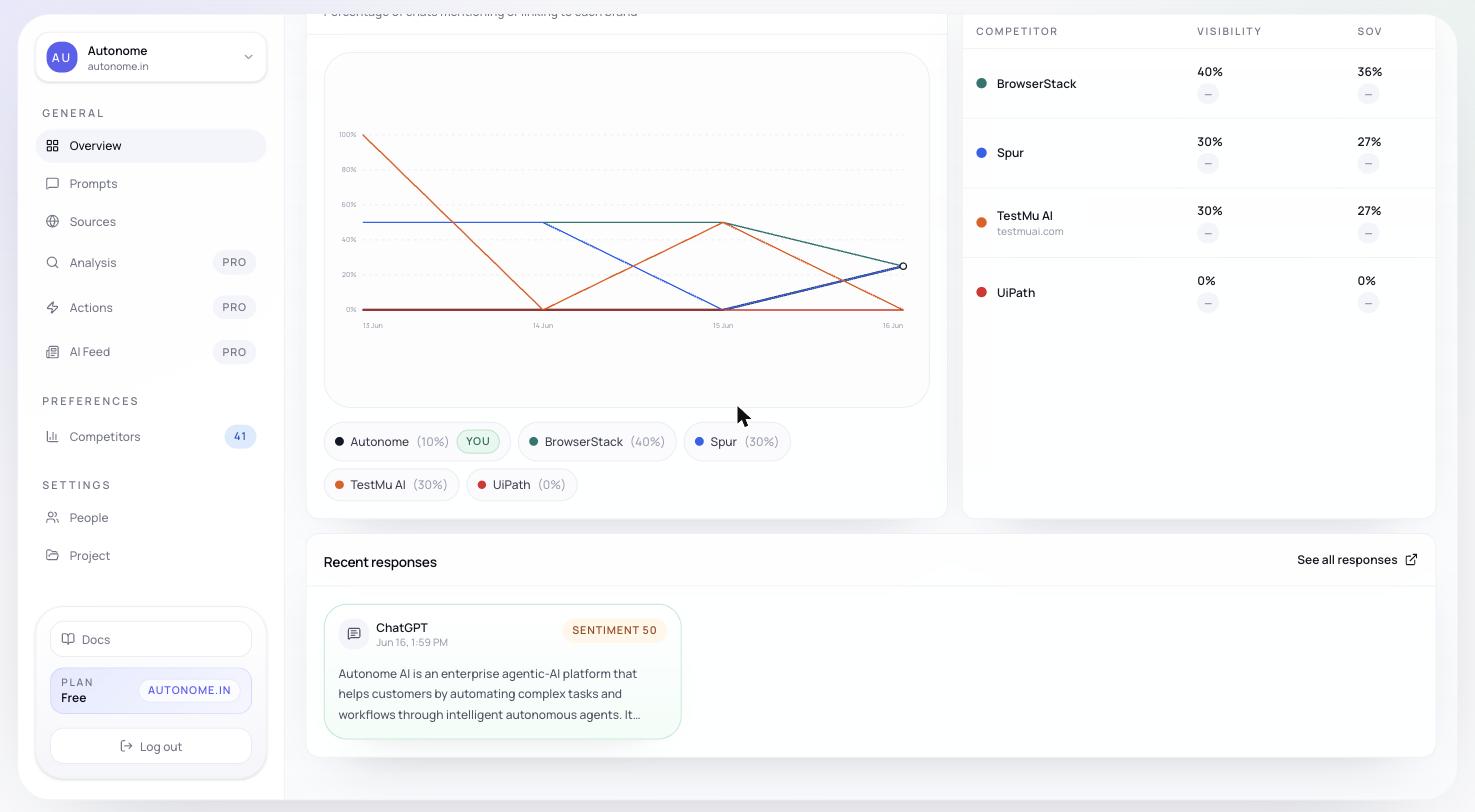 The bottom of Overview shows a feed of recent tracked responses — the actual text the AI returned. Use it to:
* check whether your brand was mentioned at all
* inspect tone and positioning in natural language
* compare responses across markets or topics
* spot source and citation patterns before opening [Sources](/features/sources) or [Analysis](/features/analysis)
## Recommended workflow
Confirm data is up to date with the freshness bar before drawing any conclusions.
Identify which metric moved — Visibility, Share of Voice, Rank, or Sentiment — and by how much.
On paid plans, the Authority / Relevance / Readiness / Competitive gap row tells you the likely root cause without any extra clicks.
Confirm whether a competitor or a new source drove the change.
Ground the numbers in real model output before deciding on next steps.
Open [Sources](/features/sources) if the change looks citation-driven, or [Analysis](/features/analysis) for full root-cause detail. When you are ready to act, go to [Actions](/features/actions).
## Next steps
See which domains and URLs are being cited — and which are missing from your footprint.
Dig into Authority, Relevance, Readiness, and Competitive gap scores.
Turn diagnostic findings into concrete fixes for your catalog, content, and feeds.
The bottom of Overview shows a feed of recent tracked responses — the actual text the AI returned. Use it to:
* check whether your brand was mentioned at all
* inspect tone and positioning in natural language
* compare responses across markets or topics
* spot source and citation patterns before opening [Sources](/features/sources) or [Analysis](/features/analysis)
## Recommended workflow
Confirm data is up to date with the freshness bar before drawing any conclusions.
Identify which metric moved — Visibility, Share of Voice, Rank, or Sentiment — and by how much.
On paid plans, the Authority / Relevance / Readiness / Competitive gap row tells you the likely root cause without any extra clicks.
Confirm whether a competitor or a new source drove the change.
Ground the numbers in real model output before deciding on next steps.
Open [Sources](/features/sources) if the change looks citation-driven, or [Analysis](/features/analysis) for full root-cause detail. When you are ready to act, go to [Actions](/features/actions).
## Next steps
See which domains and URLs are being cited — and which are missing from your footprint.
Dig into Authority, Relevance, Readiness, and Competitive gap scores.
Turn diagnostic findings into concrete fixes for your catalog, content, and feeds.